
Segments
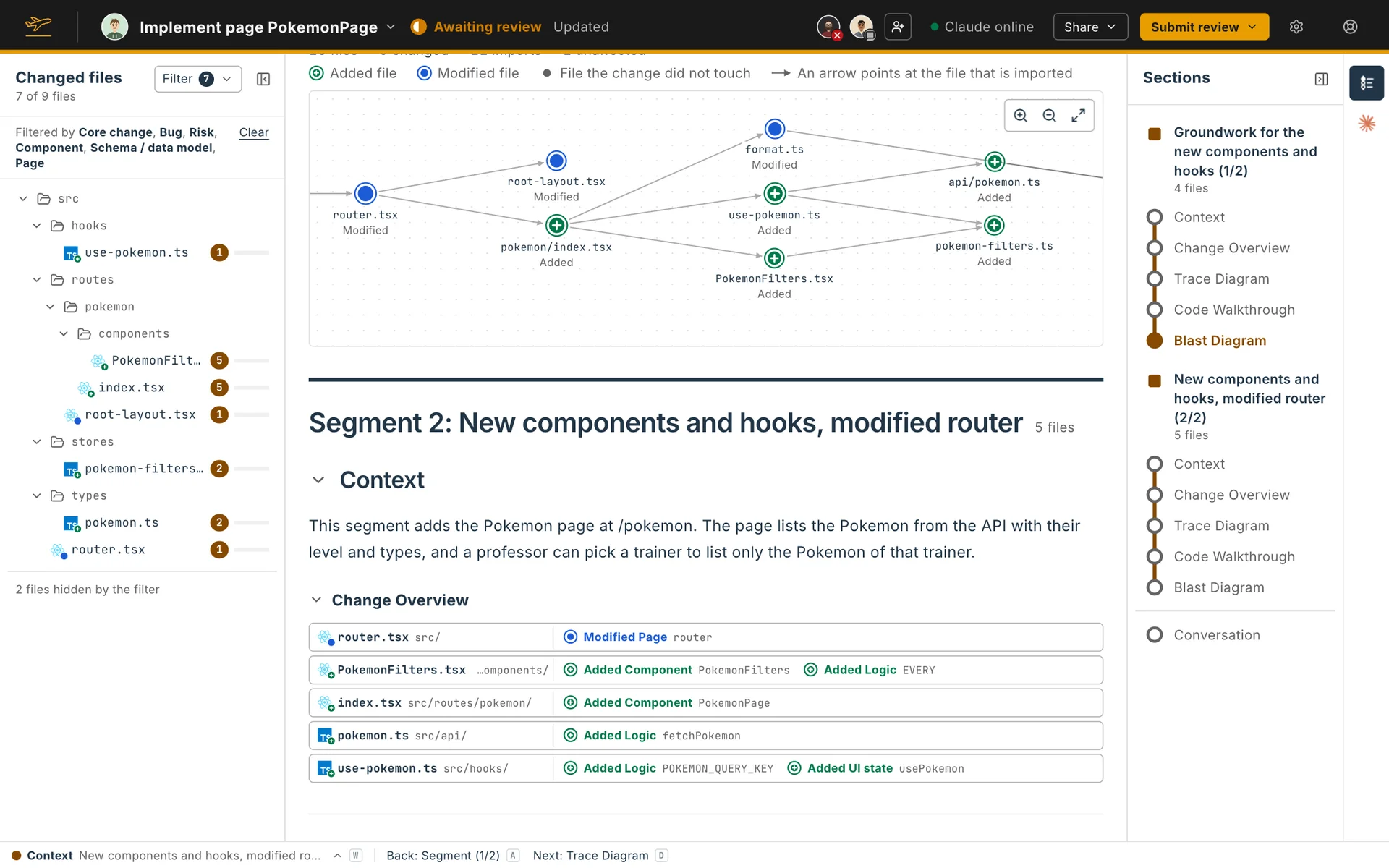
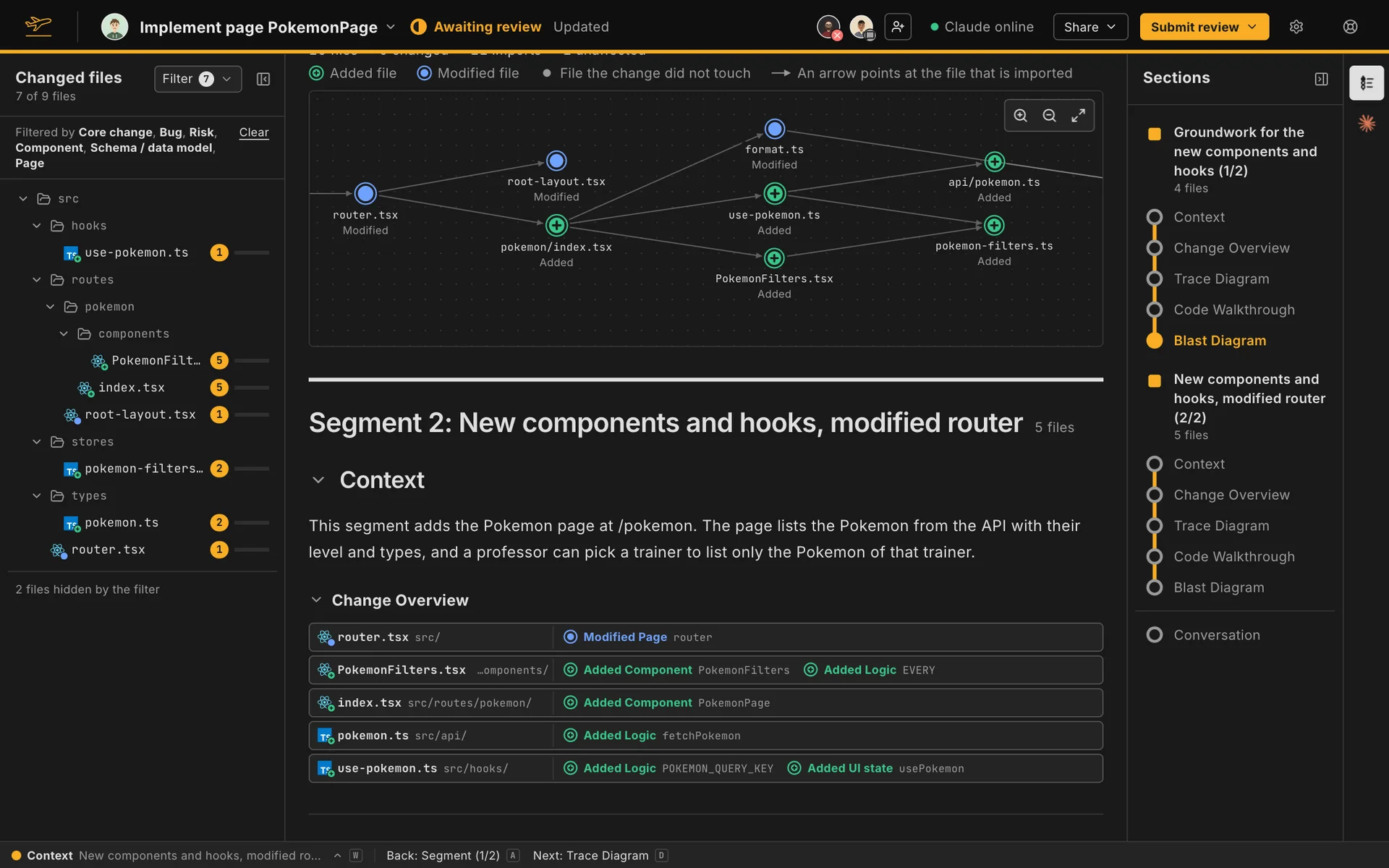
A large change is easier to read one path at a time. Flight Plan splits the change into segments, and each segment gets its own Context, Change Overview, Trace Diagram, Blast Diagram and Code Walkthrough.
How the change is split
Section titled “How the change is split”Flight Plan works out the split from the code:
- An entry segment is one path through the change: a changed file, and the changed files that only it leads to.
- The shared segment holds the code that several paths use, plus changed files no supported language reads, such as a migration or a stylesheet.
Every changed file is in exactly one segment. The files your ignored files match are left out. A small change usually has a single segment, and then the page shows no segment headings at all.
Your agent writes a title and a Context for each segment. The page shows them as Segment 1: Title, with the number of files beside it. Until the title is written, the heading says Segment 1.
Blast Diagrams per segment
Section titled “Blast Diagrams per segment”The shared segment always has a Blast Diagram, and so does a review with one segment. An entry segment has one only when code outside the change uses what it changed, or when it deletes a file.
Turning segments off
Section titled “Turning segments off”With Split reviews into segments off in your review configuration, or Split this review into segments unticked when you ask your agent to explain one review, the page shows the review as one segment. It has one Context for the whole change, one Code Walkthrough with every file, the Blast Diagrams together, and the shared segment’s code drawn in the Trace Diagram of each path that uses it, with a tab for each diagram.
On your own Flight Plan
Section titled “On your own Flight Plan”On a Flight Plan for your own pull request or branch, you can change the split:
- Edit segment changes a segment’s label and its files.
- Add a segment at the end of the page starts a new, empty one.
- Arrange in the Sections panel moves segments up and down.
A changed file you take out of every segment is flagged. The page says how many files are in no segment, and Share warns you before you publish. With segments off, there are no segments to edit.